The task setting function in WAMM.chat is a convenient tool for planning actions with chats, which helps you not to miss important moments in customer communication. It helps plan actions in advance, receive reminders at the right time, and solve customer tasks more efficiently.
Function Capabilities
- Adding a text reminder-comment
- Marking a chat as unread
- Closing a chat
- Reopening a previously closed chat
- New type - task: with the ability to add comments, change deadlines and assignee, mark as completed
- Creating multiple tasks for one chat
How to Use
To set a task for a chat:
- Open the chat dialog window
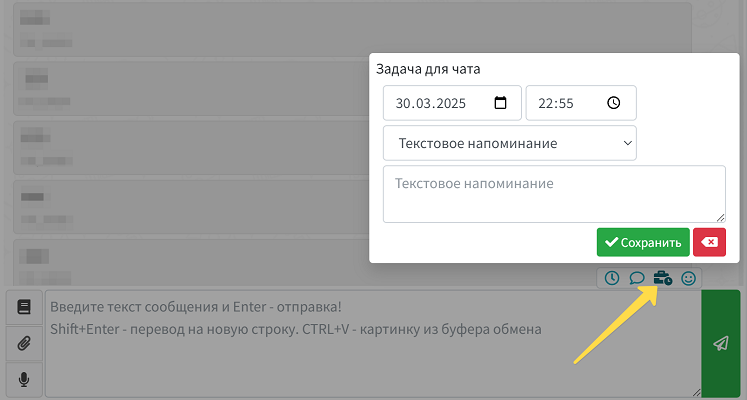
- Click the "Chat Tasks" button above the message input field
- Specify the task's due date and time
- Select the task type (reminder or new task)
- For text reminders, enter a comment
- For tasks, specify the assignee (default is you)
- Save the task
Operation Features
When a task is due:
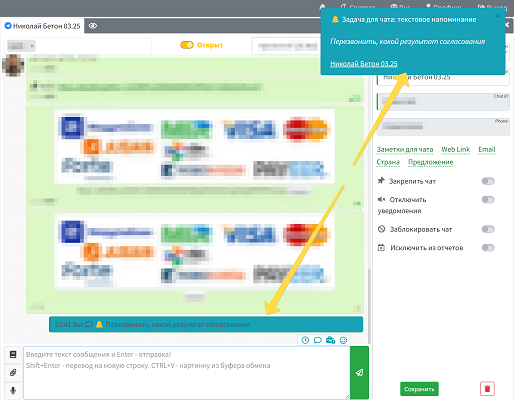
- A pop-up notification will appear for the task creator and the person responsible for the chat
- A text reminder will be added to the chat as an internal comment for everyone
- The chat will become unread, opened, or closed depending on the task type
- A red blinking icon will appear on the chat card's tasks tab if there are overdue tasks
The chat list also displays an indicator for the presence of open and overdue tasks for the chat.
"Tasks" Section
A separate "Tasks" section is available in the main menu:
- The section indicator is highlighted in blue if you have open tasks
- The indicator turns red if there are overdue tasks
- The number of open and overdue tasks is displayed
- The section provides task filtering and the ability to create new ones

Business Use Cases
- Sales Department: Reminder to call a client back a week after the initial consultation
- Support Service: Mark a chat as requiring follow-up attention after a certain time
- Managers: Assigning tasks to colleagues with deadlines and comments
- Teams: Monitoring task completion for chats using a shared list
Important: To send a message to a client at a specific time, use the delayed message sending function.
Related Functions
The function is related to other chat management tools, such as:
- Chat Tabs - for organizing dialogues
- Delayed Message Sending - for planning communications
- Assigning Chat Responsibility - for distributing tasks
- Comments in Chats - for internal discussion