To send a message, select the desired contact in the chat list or add a new contact (the blue "+" button above the chat list). In the opened dialog window, the text input field is located at the bottom. You can send a text message, a file, or a voice message. To move text to a new line, use CTRL+Enter; to send a message, use Enter or click the send button.
The user who sends a message in a chat becomes responsible for the chat.
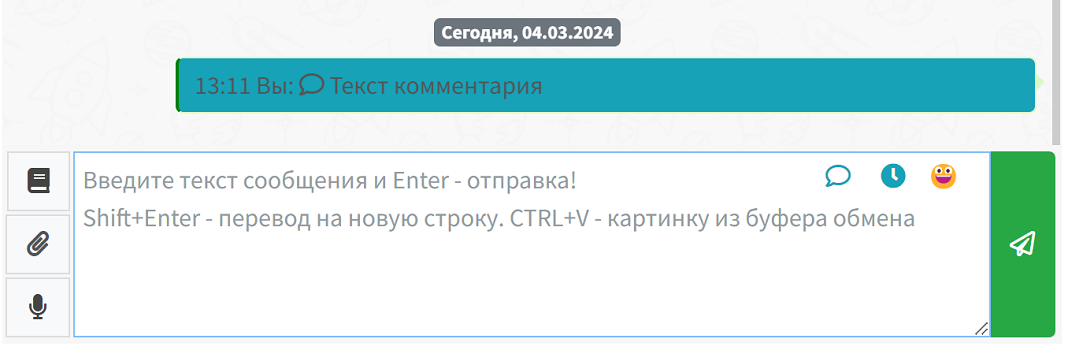
To send messages, you must have a messenger connected to WAMM, and the connection must be active and authorized. If the channel for the selected chat is not active, the message input field will also be inactive. How to connect a messenger is described in the sections: WhatsApp, Telegram, Telegram bot.
If you were entering text for a message and switched to another chat or another page of the program, the message text will be restored upon returning to the chat, and you can continue typing or sending it.
You can send screenshots from the clipboard to the chat. To do this, click on the text input field and press CTRL + V; the program will request confirmation to send the screenshot.
To send a file, use the button with a paperclip icon to the left of the text input field.
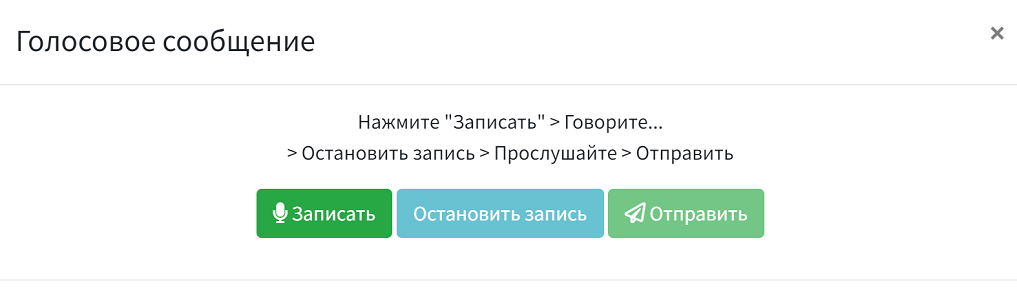
To send voice messages, click the button with a microphone icon. In the opened window, record your message and send it. There is an option to preview the message before sending.
To save time and avoid manually typing repetitive text each time, use templates (the button with a book icon). For more details about templates, see the Templates section.
You can also schedule a message to be sent at a specific time using the Scheduled Messages function.