WAMM.chat provides the ability to disable notifications for specific chats. This feature allows you to control the flow of notifications and focus on priority conversations without being distracted by less important ones.
Disabling notifications for a specific chat means you will continue to receive messages in that conversation, but the system will not send you push notifications to your desktop or Telegram when new messages arrive from that contact.
How to Disable Chat Notifications
There are two ways to disable notifications for a specific chat:
- Via the chat menu in the list: When you hover your mouse cursor over a chat in the list, a menu button (three dashes) appears. Click on it and select the "Disable notifications" option. After this, an indicator in the form of a crossed-out speaker will appear next to the chat, meaning notifications are disabled for this chat.
- Via the "Info" tab in the chat window: Open the desired chat and go to the "Info" tab. There you will find an option to disable notifications.
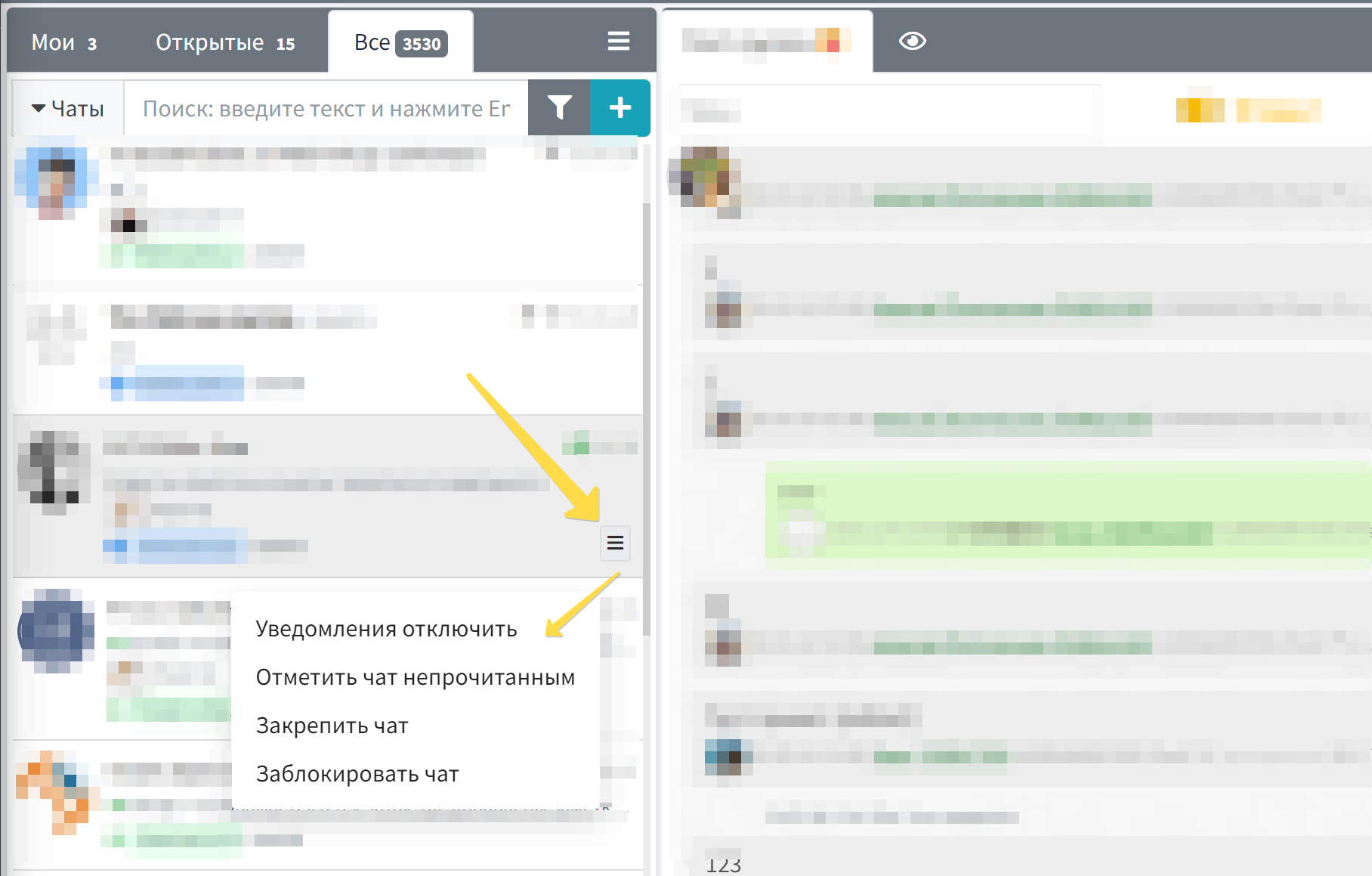
Feature Operation Details
When notifications are disabled for a specific chat:
- You will not receive push notifications to your computer desktop
- You will not receive notifications in Telegram
- Messages will continue to arrive in the chat, and you can see them when you open the conversation
- The unread message indicator will work as usual
It is important to note that disabling notifications applies to all users, not individually for each user. If a chat involves multiple operators, this setting will affect each of them.
Application in Business Processes
The function of disabling notifications for individual chats helps optimize workflows in various scenarios:
- Working with group chats: If you participate in highly active group chats that do not require your constant attention, disabling notifications will help you focus on direct communication with customers.
- Non-priority dialogues: For chats that require attention only at specific times, you can temporarily disable notifications and check them on a schedule.
- Technical accounts: If your system is connected to bots or service accounts that generate a large number of messages, disabling notifications from them will help avoid information noise.
Connection with Other Features
The function of disabling notifications for individual chats interacts with other WAMM.chat capabilities:
- It complements personal notification settings in the User Profile, where you can configure general notification parameters
- It works together with the chat pinning function, allowing you to highlight important conversations without receiving notifications from them
- It can be used together with chat blocking for complete control over unwanted contacts
For managing a large number of conversations, it is also useful to use chat filters and chat sorting, which help effectively organize your workspace.