The "Mark chat as unread" function allows you to manually change a chat's status to unread, even if you have already viewed its contents. This helps visually highlight chats that require additional attention or action.
Benefits of using the function
By marking chats as unread, you can:
- Flag important conversations you need to return to later
- Highlight chats that require further processing or resolution
- Create a reminder for yourself about pending tasks
- Organize work when transferring chats between employees
How to mark a chat as unread
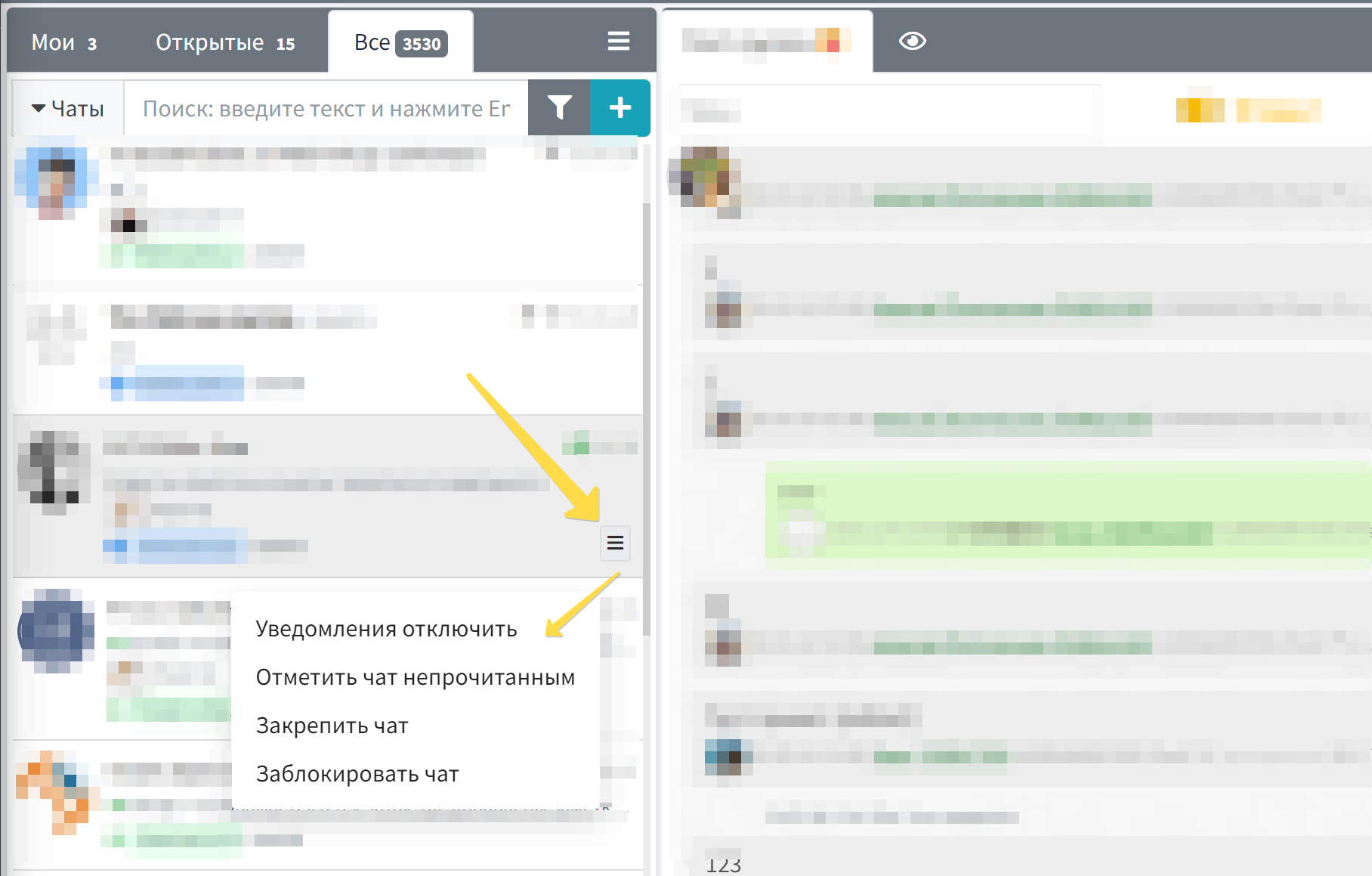
To mark a chat as unread:
- Hover your cursor over the desired chat in the conversation list
- Click on the menu button that appears (three horizontal lines)
- In the context menu, select the "Mark chat as unread" item
After this, the chat will receive an unread conversation label and will be displayed accordingly in the chat list.
Practical application
The "Mark chat as unread" function is especially useful in the following situations:
- When working in a team - when it's necessary to draw colleagues' attention to a specific conversation
- During multitasking - when you have viewed a chat but cannot respond immediately and don't want to forget about it
- When processing a large volume of inquiries - for the visual organization of priority tasks
- During shift handover - to mark chats requiring the attention of the next operator
Connection with other functions
This function closely interacts with other chat management tools in WAMM.chat:
- Chat sorting - unread chats can be displayed at the top of the list with corresponding sorting settings
- Chat counters - unread chats are counted in the overall unread message statistics
- Chat responsible person - the function complements the system of assigning responsible persons, helping to visually highlight priority conversations
Rational use of the "Mark chat as unread" function helps effectively organize customer service, streamline workflow, and ensure important inquiries are not missed in the flow of messages.