The program automatically loads contacts from WhatsApp and Telegram messengers in the following cases: during authorization, when reloading the connection channel, and upon receiving the first message from a contact not previously found in the list. However, it is important to note that this function is implemented unilaterally – the program cannot send contact names back to the messenger.
8.1 Automatic Loading. In the Settings section, if you click on any channel, its settings contain options that affect the automatic loading of contacts and messages: Load contacts on connection; Load messages on connection. By default, these settings are enabled; you can disable or enable them.
8.2. You can load contacts from a Google account if you use an Android smartphone. To do this, go to Google Contacts https://contacts.google.com/, log in, and export your contacts to a Google CSV format file.

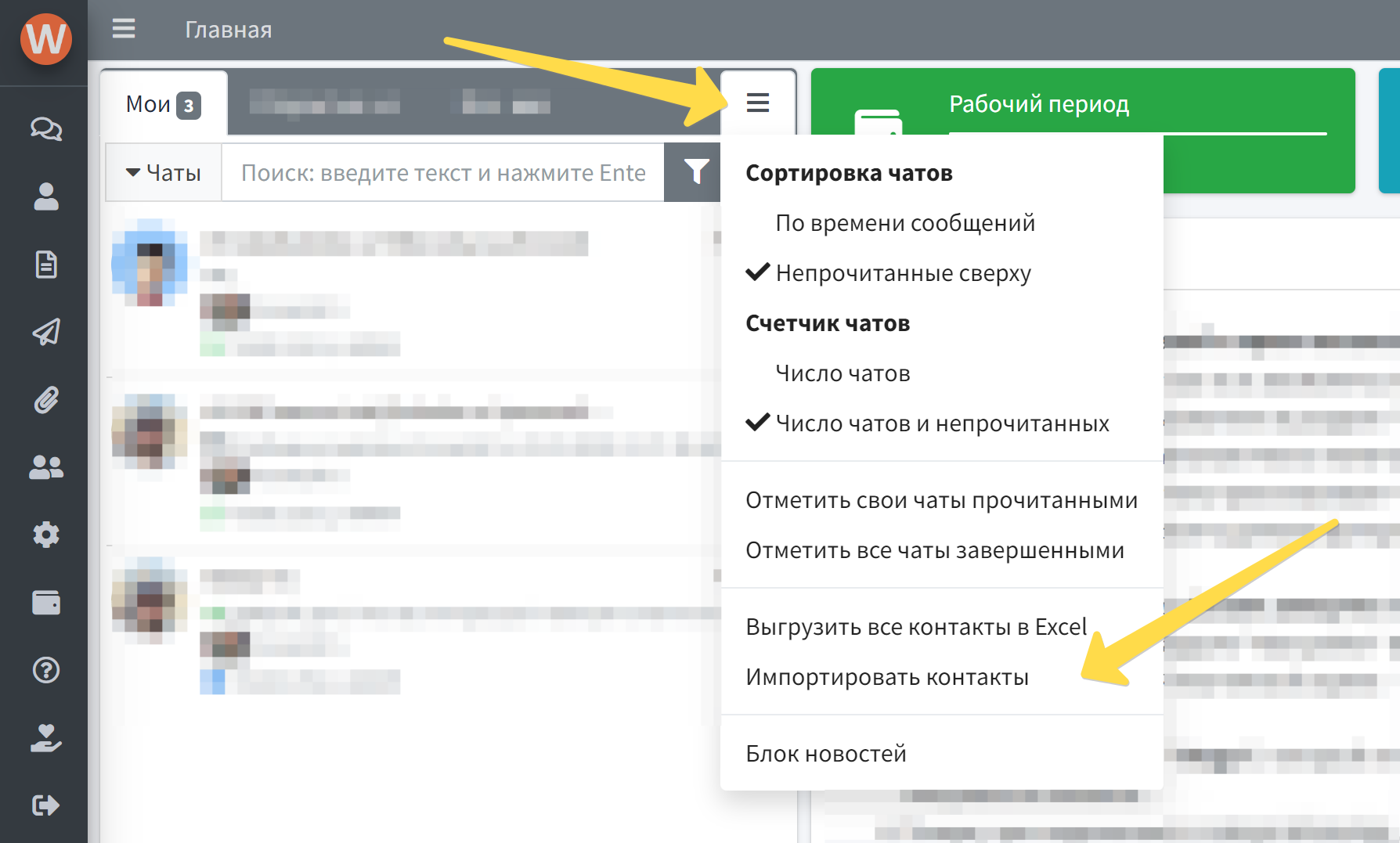
Next, in the chats menu, click on "Import Contacts" and select the file with your contacts. New contacts will be added, and existing ones will update their names to those specified in the Google CSV file.
8.3. Contacts can be added manually. To do this, while in the program's main window, click the button , specify a name and phone number in international format (+7..., +9...), after which you can immediately send messages to this contact. The number can contain spaces, dashes, parentheses, and other symbols; only digits will remain after saving.

8.4. Contacts can be loaded from an Excel file in XLSX format. To do this, in the chats menu, click on "Import Contacts" and select the file with your contacts. New contacts will be added, and existing ones will update their names to those specified in the Excel file. There, you can also download an example Excel file and study the required format for names and phone numbers.
8.5. Contacts can be added and updated via API. See the section below: WAMM.chat API.